 BoothLab
The 360 Photo Booth App That Covers Your Whole Event
Cinematic slow-motion 360 videos at up to 240 fps from an iPhone on the spinner arm. Classic photo booth strips, printed on the spot, from an iPad on a tripod. Every capture branded for you and delivered by QR code before guests leave. No GoPro, laptop or desktop software required.

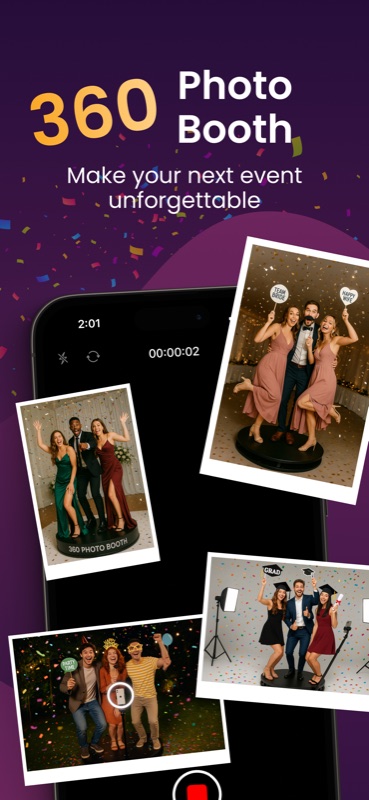
The 360 Video Booth
Mount the iPhone on your spinner arm. BoothLab records the spin, renders the slow motion, effects, branding and music into it, and has a QR code ready seconds later.
Slow-Motion 360 Videos
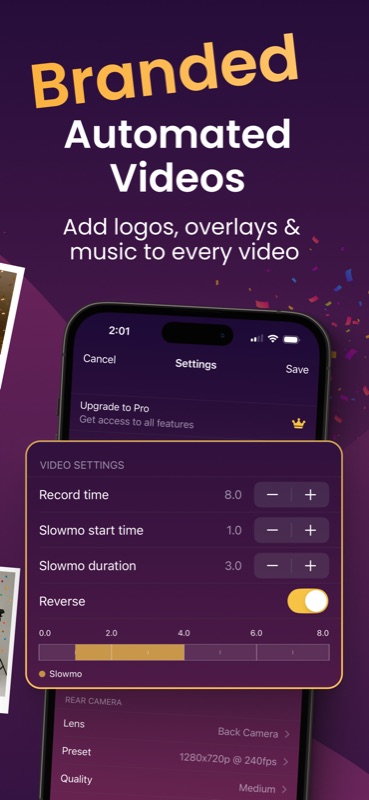
Record 720p or 1080p at up to 240 fps for true slow motion, or 4K at 60 fps when detail matters most — with an adjustable slow-mo range and reverse effect for that signature cinematic spin.
16 Video Effects
Light Rings, confetti, bubbles, volumetric smoke, echo trail, sparkle, disco, glitch, strobe, RGB shift and more — layered onto the spin as it renders.
Beat Sync
BoothLab analyses your music track and drives the animated effects off the detected tempo, so the effects align with the tempo without manual timing.
19 Filters
Mono, Noir, Sepia, Vivid, Chrome, Golden hour, Cinematic, Film, Frost, Duotone and the rest — select a look for each event and every recording keeps it.
Branded Overlays & Music
Add your logo, intros, outros, and MP3 music to every video — automated, so each clip leaves the booth on-brand.
Sharing Station & AirPlay
Put a second iPad near the exit as a self-serve download kiosk, and stream the event gallery to an Apple TV. Both are opened from 360 booth mode.
The Classic Photo Booth
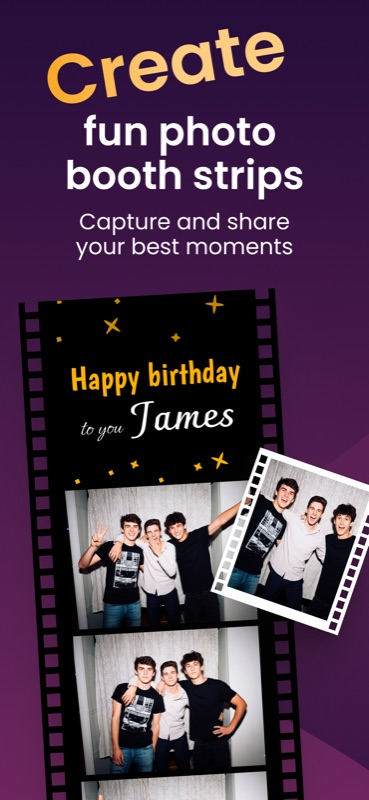
Stand an iPad on a tripod and BoothLab becomes a traditional photo booth: guests pose, the session renders straight into your template, and the strip is printed or delivered to their phone before they leave the booth.
Photo Strips & Collages
Classic strips and collages, one to four photos per session, rendered into your design automatically — perfect for birthdays, weddings, and quinceañeras.
163 Templates, 66 Layouts
Birthday, wedding, graduation, baby shower, Christmas, Halloween and more, in 2×6, 4×4, 4×6 and 6×4 print sizes — plus 112 bundled fonts and a designer for your own.
13 Photo Effects
Mirror, bulge, glass, prism, op art, halftone, thermal and more, so the strips from a single event do not all look alike.
Sony & Canon Cameras
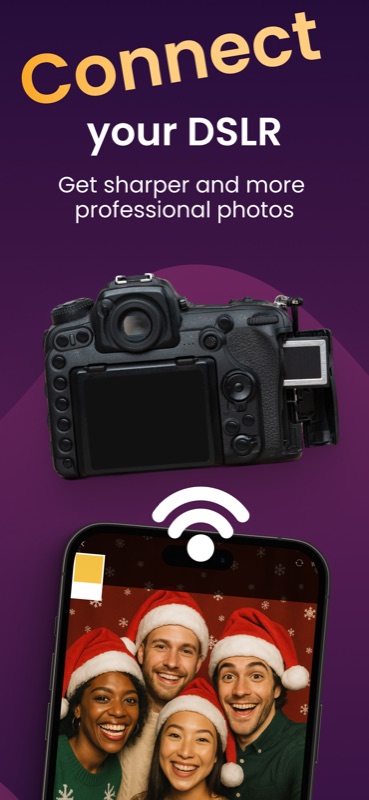
Connect a Sony or Canon body over USB for portrait quality a phone camera cannot match. They shoot the stills at the photo station; the 360 spins are always recorded by the iPhone itself.
GIFs & Boomerangs
Every session can also produce a looping boomerang GIF and a short video alongside the still — the formats guests share on social media.
Print & Share On the Spot
Send a strip straight to an AirPrint printer — including a double 2×6 sheet — or hand it over by QR code, email, text message or WhatsApp from the guest screen.
What BoothLab Covers
An overview of the main capabilities: 360 capture, branded video, photo strips, QR delivery and camera connection. BoothLab runs on both iPhone and iPad. For step-by-step walkthroughs, see the guides below.
How BoothLab Works
You choose the booth when you open the app. Both run entirely on the device — no desktop software, no rendering queue, no editing afterwards.
Mount the iPhone
Install BoothLab free from the App Store, pick 360 booth on the launch screen, and mount your iPhone on the spinner arm in portrait.
Set your session
Pick resolution and frame rate (up to 240 fps at 1080p, or 4K at 60 fps), set the slow-mo range and reverse, and load your overlay, intro, outro, and music.
Capture the spin
Guests step onto the platform, it rotates, and BoothLab records and processes the video in the background so the queue keeps moving.
Share by QR
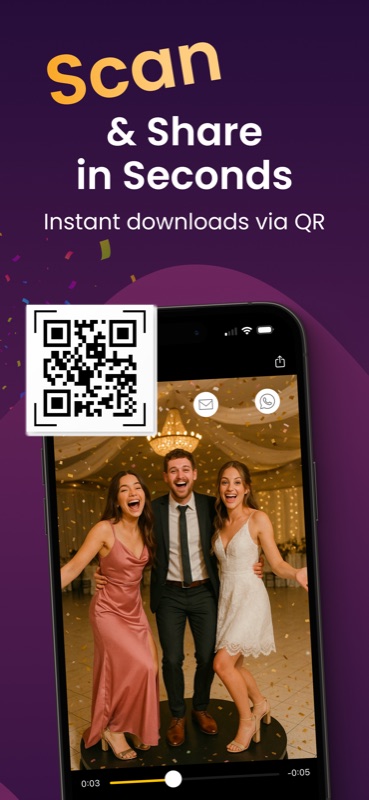
A QR code appears seconds later. Guests scan, download and share — or collect their video from your Sharing Station iPad.
Stand up the iPad
Pick Photobooth on the launch screen and put the iPad on a tripod at eye level. Optionally connect a Sony or Canon body over USB for sharper portraits.
Pick your template
Choose a strip or collage layout, personalise the title panel with the event name and date, and load the overlay for the client's branding.
Run the session
Guests tap start, pose through the countdown, and the shots render straight into your template — plus a boomerang GIF if you enabled it.
Print or share
Send the strip to an AirPrint printer, or let guests take it by QR code, email, text message or WhatsApp from the guest screen.
360 Photo Booth Guides
Practical, step-by-step answers for booth operators — from your first event to a fully booked calendar.
How to Start a 360 Photo Booth Business
Startup costs, equipment list, pricing, and how to book your first paid event.
Read the guide → SetupTurn Your iPhone Into a 360 Photo Booth
Run a full 360 booth with just an iPhone and a spinner — no GoPro or laptop.
Read the guide → BusinessWhat to Charge for a 360 Photo Booth
Real rental price ranges and a simple formula to price your packages.
Read the guide → TechniquePerfect Slow-Motion 360 Videos
Frame rates, slow-mo ranges, and the 240 fps settings pros use.
Read the guide → TechniqueAdd Music to 360 Booth Videos
Import MP3s and let BoothLab sync its visual effects to the beat — automatically, on every video.
Read the guide → BrandingCustom Overlays, Intros & Outros
Brand every video with your logo or your client's event artwork.
Read the guide → SharingQR Code Photo Booth Sharing
How guests get their videos in seconds — and why it is faster than email or AirDrop.
Read the guide → SharingSet Up a Sharing Station
Turn an iPad into a self-serve download kiosk with Dropbox or Google Drive.
Read the guide → Events360 Photo Booth for Weddings
Placement, timing and settings for wedding receptions.
Read the guide → CompareLooking for a Touchpix Alternative?
How BoothLab compares on price, speed, and features for 360 booths.
Read the guide →Photo Booth Guides
Running the iPad booth: templates, connected cameras, printing, and the looping formats guests share.
Create Custom Photo Booth Strips
Design classic strip layouts with names, dates, and event themes.
Read the guide → GearConnect a Sony DSLR to Your Booth
Combine professional camera optics with the app workflow for sharper photo station portraits.
Read the guide → GearConnect a Canon Camera to Your Booth
Connect an EOS R body over USB for sharper photo station portraits.
Read the guide → SetupSet Up an iPad Photo Booth
Set up a classic photo booth using an iPad and a tripod.
Read the guide → PrintingPrint Photo Booth Strips at Your Event
AirPrint setup, paper sizes and the double 2×6 sheet.
Read the guide → CreativeGIF & Boomerang Booth Modes
The looping formats guests share, produced directly at the booth.
Read the guide →Frequently Asked Questions
What is BoothLab?
BoothLab is two photo booths in one iPhone and iPad app. In 360 booth mode it records slow-motion 360 videos from a phone mounted on a spinner arm; in Photobooth mode it runs a classic photo booth that renders sessions into printable strips and collages. You pick the mode when you open the app, and both share the same branding, QR delivery and cloud upload. Learn more →
Is BoothLab free?
Yes — BoothLab is free to download and every feature is unlocked from the start in both modes — recording, effects, templates, connected cameras, cloud upload and QR sharing all work without paying. Videos and photos exported on the free plan carry a BoothLab demo watermark. A Pro subscription (1 month, 6 months, or 1 year) removes it. Learn more →
What equipment do I need for a 360 photo booth?
At minimum: an iPhone running BoothLab and a rotating 360 platform. Add lighting and an iPad sharing station as you grow — no GoPro, laptop, or PC software required. Learn more →
Can BoothLab record in 4K and slow motion?
Yes. BoothLab records at 720p, 1080p or 4K, at frame rates from 60 up to 240 fps depending on the resolution and your device — 240 fps is available at 720p and 1080p, while 4K records at 60 fps on most iPhones. It also has an adjustable slow-motion range and a reverse effect for cinematic 360 booth videos. Learn more →
How long can a 360 booth video be?
Each spin can be up to 20 seconds long, set in 0.5-second steps. Most operators run 8 seconds, which covers about two full rotations on a typical platform, and the slow-motion window sits inside that.
Do the videos record sound?
The 360 videos are recorded without live sound — BoothLab never asks for microphone access, so the chatter and music of the room are not captured. The soundtrack comes from the audio file you load into the event, which is rendered into every video.
Do I need an internet connection to use BoothLab?
Recording and processing videos work offline, but cloud sync and QR sharing require a connection. Learn more →
Can I use my own music?
Yes — save the audio file in Apple's Files app first, then import it from the Audio files section in BoothLab. Make sure the file is in a supported format like .mp3 or .m4a for the best compatibility. Learn more →
How do guests receive their videos?
Every video gets a QR code that guests can scan to instantly download and share their recordings. An internet connection is needed for upload and sharing. Learn more →
Can I add my logo to the videos?
Yes — add custom overlays, intros, and outros so every video that leaves your booth carries your brand or your client's event artwork. Learn more →
What equipment do I need for a classic photo booth?
An iPad and a sturdy tripod or stand is the minimum — BoothLab supplies the templates, the countdown and the guest sharing screen. Add a ring light for even skin tones, an AirPrint photo printer if you want strips in hand, and optionally a Sony or Canon body connected over USB for portraits no tablet camera can match.
Can BoothLab make GIFs and boomerangs?
Yes, in Photobooth mode. Alongside the still, each session can also produce a looping boomerang GIF and a short video, so guests receive the formats they share on social media. They are switched on in the Photobooth settings, and the switch applies to every event on the device.
Can I print photo strips at the event?
Yes. From the guest sharing screen you can send a strip straight to any AirPrint printer, and 2×6 strips offer a double option that lays two copies side by side on one 4×6 sheet — one print, two keepsakes. Printing is part of Photobooth mode.
Can I connect a DSLR camera?
Yes — connect a Sony or Canon camera to BoothLab over USB to capture sharper, more professional photos while keeping the same fast app workflow. Connected cameras shoot the stills at the photo station; 360 spins are recorded with the iPhone itself. Learn more →
Can I design my own photo strip templates?
Yes — BoothLab includes a layout designer for classic photo booth strips, so you can build custom templates with names, dates, and event branding. Learn more →
Can I use BoothLab on multiple devices?
Yes — install BoothLab on another device signed in with the same App Store account, then tap the crown icon and choose Restore purchases.
Can I upload videos to Dropbox or Google Drive?
Yes — BoothLab uploads 360 video compositions and photo booth images to Dropbox or Google Drive and generates QR codes for them. The Sharing Station kiosk browses that same cloud folder, but it is opened from 360 booth mode, so plan on the 360 side of your setup for it. Learn more →
Why do I get an error when uploading to Google Drive?
The two most common causes are a full Google Drive storage quota or missing permissions. If Drive is full, delete files to free space and upload again. If it is permissions, open myaccount.google.com/permissions and remove Video Booth 360 from the list — that is the name BoothLab registers under — then sign out of your Google account inside BoothLab, sign back in, and accept every permission on the consent screen. Learn more →
Why does Google Drive say the video is processing and won't play right away?
Google converts uploaded files for streaming, which can take a few minutes depending on file size and network speed. Until it finishes you may see a grey preview or a processing message instead of playback. You can still download the video immediately and play it locally on your device.
How can I see when my next billing date is?
Open iOS Settings → tap your name → Subscriptions → BoothLab to view your billing date and manage your plan.
Ready to Run Your Next Event With BoothLab?
Join thousands of booth operators running 360 spins, classic strips, or both from the same app — free to download, set up in minutes.